









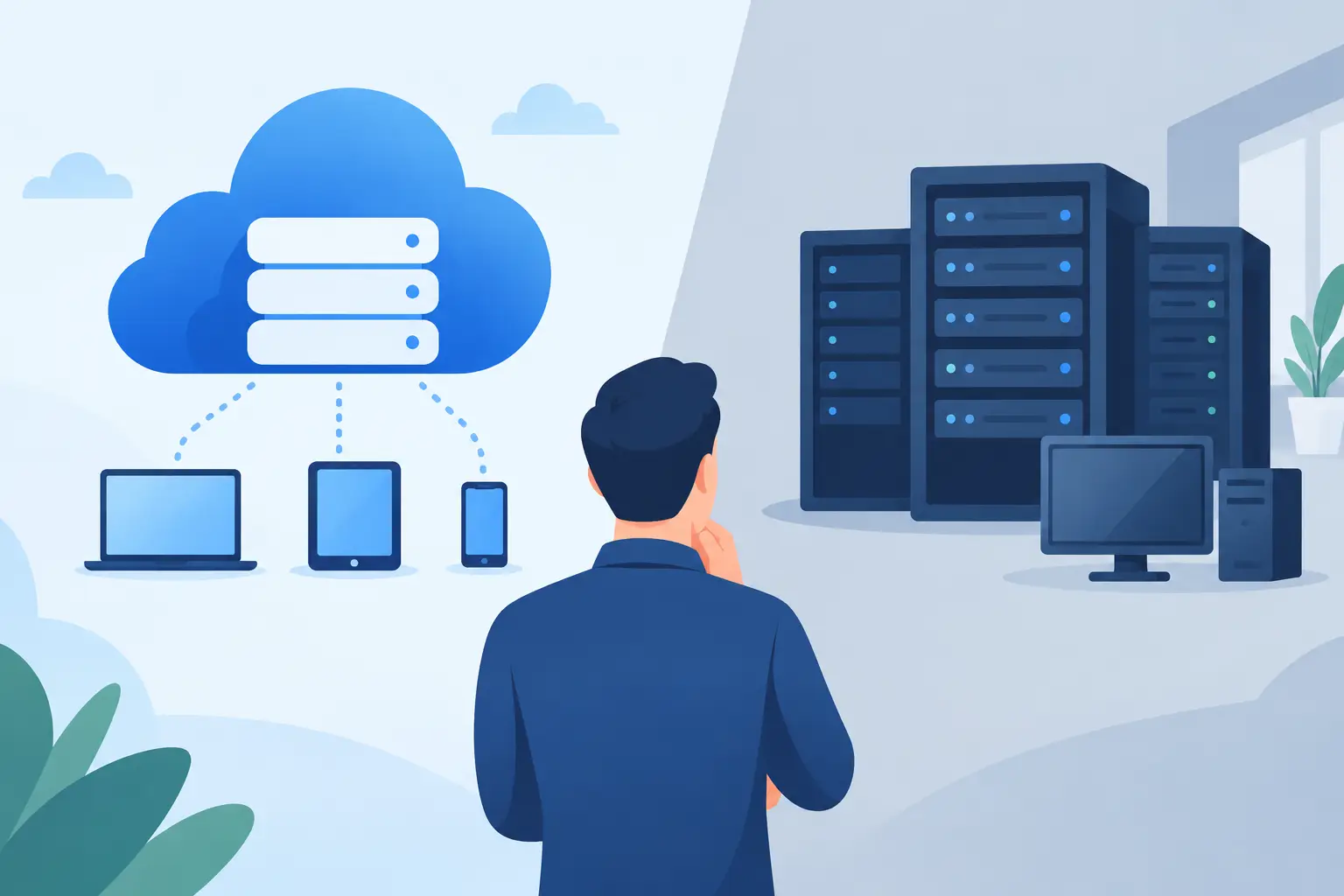
A file server that only works from the office can slow down a growing business fast. So can a cloud platform that was set up quickly, then left without clear permissions, backup policies, or cost controls. The cloud storage vs local servers decision is not mainly about picking the newest technology. It is about giving employees reliable access to the information they need while protecting the business when equipment fails, staff changes, or a security incident occurs.
For many small and midsize businesses, the right answer is not entirely cloud or entirely local. It depends on the applications you use, the size of your files, how your team works, and how much support your business can realistically maintain.
Cloud Storage vs Local Servers: The Core Difference
Cloud storage keeps files and data in provider-operated data centers and makes them available through an internet connection. Services such as Microsoft 365, Google Workspace, and managed cloud file platforms are common examples. Your team can generally access files from the office, home, job site, or while traveling, provided they have permission and a dependable connection.
Local servers keep data on hardware located at your office or another facility you control. That may be a dedicated server, a network-attached storage device, or a more complex on-premises setup. Employees usually connect through the local network, although remote access can be configured securely with the right tools and oversight.
The practical difference is responsibility. Cloud storage shifts much of the physical infrastructure responsibility to the provider. Local servers put more responsibility on your business or IT partner, including hardware health, storage capacity, updates, backups, power protection, and replacement planning.
Neither approach eliminates work. A cloud platform still needs user management, security settings, file organization, retention rules, and backup planning. A local server can provide excellent speed and control, but it needs regular maintenance to stay dependable.
When Cloud Storage Makes Business Sense
Cloud storage is often a strong fit for businesses with hybrid staff, multiple locations, mobile employees, or a need to collaborate with clients and outside partners. Instead of emailing versions of the same document back and forth, teams can work from a shared location with defined permissions and version history.
It also reduces the pressure to purchase and manage major hardware upfront. Rather than replacing a server every several years, businesses typically pay a predictable monthly or annual subscription based on users and storage needs. That can make budgeting easier, particularly for companies that are growing or have seasonal staffing changes.
The operational advantage is access. A construction manager can retrieve updated plans from a job site. A sales team can find the current proposal template while meeting with a prospect. An office manager can share a secure folder with an accountant without copying sensitive information to a flash drive.
Cloud storage does have limits. Large design files, video assets, engineering models, or database files may be slow to upload and download when internet bandwidth is limited. If your office loses internet service, cloud-based files may be unavailable until service is restored, unless employees have properly synchronized offline copies. Subscription costs can also rise as more users, storage, and security features are added.
Security is another area where businesses should avoid assumptions. Major cloud providers invest heavily in data center security, but the provider cannot prevent every mistake inside your organization. Weak passwords, excessive user permissions, unprotected devices, and phishing attacks can still expose business data. Multi-factor authentication, clear access policies, and regular account reviews are essential.
When Local Servers Are the Better Fit
Local servers remain useful when speed, control, and on-site availability matter most. A business that handles very large files all day may benefit from local network performance that cloud storage cannot match. Teams working with high-resolution media, large CAD files, production data, or specialized applications often need fast access without repeatedly transferring large amounts of data over the internet.
A local server can also support software that was designed for an on-premises environment. Some line-of-business applications, older accounting systems, industry-specific databases, and equipment management tools may work best when their data stays on a server inside the office.
With the right configuration, local storage can keep critical files accessible during an internet outage. Your staff may still be able to work from the office network even when cloud services are temporarily unavailable. That can matter for organizations where downtime directly affects customer service, scheduling, manufacturing, or transaction processing.
The trade-off is that the business owns more of the risk. Hardware eventually fails. Power interruptions, heat, theft, water damage, and ransomware can all threaten an on-site server. A server is not a backup simply because it stores the original files. It needs a separate, tested backup process, ideally with an off-site or cloud-based copy.
Local servers also require a replacement plan. Waiting until a server crashes to decide what comes next usually creates expensive downtime and rushed decisions. Businesses should know the age of their equipment, available storage capacity, warranty status, and recovery process before a problem occurs.
Compare the Costs Beyond the Purchase Price
Cloud storage is usually easier to start because it avoids a large hardware purchase. However, the monthly cost is ongoing. Over several years, per-user licenses, added storage, backup services, and premium security features can become a meaningful operating expense.
Local servers often require a larger initial investment for hardware, installation, networking equipment, backup devices, and support. The recurring costs may be lower in some cases, but the business must budget for maintenance, electricity, replacement drives, software licensing, and eventual server replacement.
The more useful question is not which option has the lowest sticker price. Ask which option reduces downtime, supports your staff, and avoids costly workarounds. If employees spend time searching for files, sending oversized attachments, recreating lost work, or waiting for systems to respond, the operational cost can exceed the technology cost.
A Practical Decision Framework
Before moving data or buying equipment, evaluate how your business actually operates. Focus on these four areas:
- Access needs: Consider whether employees need files from home, client sites, multiple offices, or only from a single location.
- File types and performance: Identify large files, databases, and specialized software that may require fast local access.
- Security and compliance: Determine who should access sensitive records, how access is reviewed, and whether your industry has retention or privacy requirements.
- Support capacity: Be honest about who will manage permissions, updates, backups, hardware alerts, and recovery testing.
This assessment often reveals that different types of data need different homes. General documents, shared spreadsheets, customer-facing materials, and collaborative files may belong in a cloud platform. Large production files, application databases, or legacy systems may stay on a local server with secure backup and remote access where appropriate.
Why Hybrid Setups Often Work Best
A hybrid approach combines local performance with cloud flexibility. For example, a business may keep an on-site server for a specialized application while using cloud storage for everyday collaboration, email attachments, shared documents, and remote work. The local server can then be backed up to an off-site location to reduce the risk of a single office disaster.
Hybrid environments need thoughtful planning. Employees should not have to guess whether a file belongs on a server, in a cloud drive, or on their desktop. Clear folder structures, ownership rules, access permissions, and training prevent confusion. The goal is to create one dependable way of working, not two competing systems.
This is also where a single technology partner can be valuable. Set IT Solutions can help businesses evaluate existing systems, improve file access, support server infrastructure, and align storage choices with day-to-day operations rather than treating each issue as a separate project.
Protect Data No Matter Where It Lives
Cloud and local storage both need active protection. Start with unique passwords and multi-factor authentication for every account that can access company data. Remove access promptly when an employee leaves or changes roles, and avoid shared logins that make accountability impossible.
Backups deserve equal attention. Cloud sync is helpful, but it is not always a complete backup strategy. If a file is deleted, corrupted, or encrypted by ransomware, that change can synchronize across connected folders. Keep separate backups, define retention periods, and test restoration regularly. A backup that has never been tested is only a hope.
Finally, document the basics. Your business should know where critical data is stored, who administers each system, how to contact support, and what steps to take if access is lost. That documentation can save hours when an urgent problem occurs.
The best storage decision is the one your team can use confidently every day, maintain responsibly, and recover from when something goes wrong. Start with the work your people need to do, then build the technology around it.