









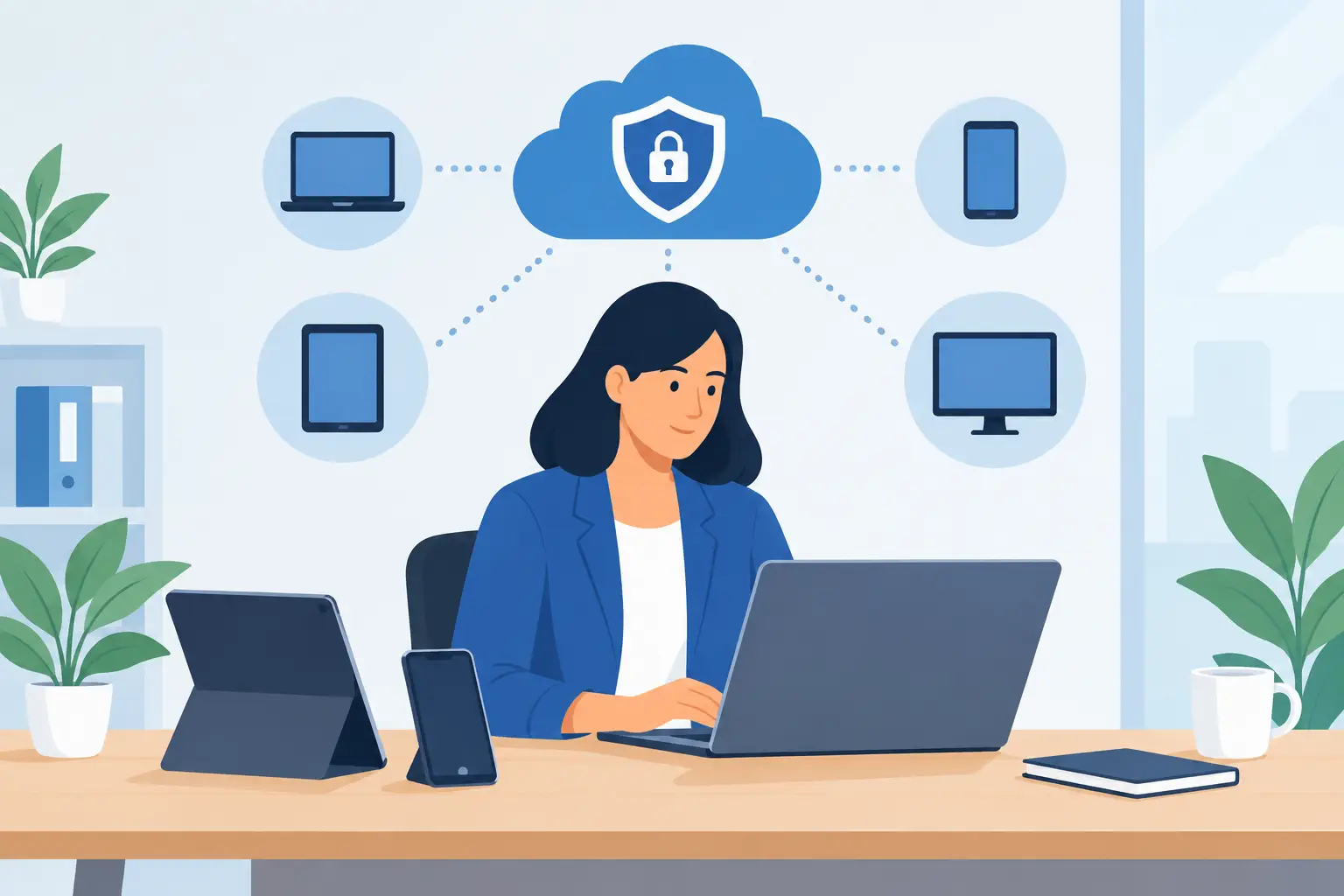
A new employee starts Monday. Their laptop arrives late, no one is sure which software they need, and a former employee’s account is still active in the company email system. None of these issues is unusual for a growing business, but together they create wasted time, security exposure, and a poor first impression. To manage employee devices well, businesses need a repeatable process that covers the full life of each device, not just a response when something breaks.
For small and midsize businesses, device management does not need to mean an expensive enterprise system or a full-time IT department. It means knowing what equipment you have, who is using it, how it is protected, and what happens when it needs support, replacement, or reassignment. The goal is simple: keep people productive without letting everyday technology become another operational burden.
Start With a Complete Device Inventory
You cannot support or secure equipment you cannot identify. A current device inventory is the foundation of practical IT management. It should include company-owned laptops, desktops, tablets, mobile phones, monitors, printers, network equipment, and any shared devices employees use to do their jobs.
For each item, record the make and model, serial number, assigned employee, department, purchase date, warranty status, operating system, and location. Also note whether the device is company-owned or personally owned. This information can live in a straightforward asset register at first, but it needs an owner and a regular review schedule. An inventory that is updated only when someone remembers will quickly become unreliable.
The inventory also helps with budgeting. When you know that six laptops are approaching the end of their useful life, you can plan replacements instead of facing six urgent failures at once. It gives managers a clearer picture of total technology costs and avoids the common problem of buying mismatched equipment whenever a new hire arrives.
Create a Standard for Employee Devices
Standardization makes support faster and more predictable. If every employee has a different laptop brand, operating system version, software setup, and accessory collection, even minor troubleshooting takes longer. Your support team must diagnose the issue and learn the unique setup before fixing it.
A practical device standard defines approved hardware, operating systems, core applications, security tools, and expected replacement cycles. It does not mean every role needs identical equipment. A designer may need more processing power and storage than an office coordinator, while a field employee may need a durable mobile device. The point is to establish a small number of approved configurations for the work people actually do.
Standard setups also improve onboarding. Rather than building every computer from scratch, the business can prepare a role-based device package with the right accounts, applications, permissions, and settings. A new employee can begin contributing sooner, and the office manager is not left chasing logins during their first week.
Separate hardware decisions from personal preference
Employees often have reasonable preferences, especially when they have used a particular operating system for years. Those preferences matter, but they should be weighed against support requirements, compatibility with business systems, and the cost of maintaining multiple platforms.
In some businesses, a limited choice between approved device types works well. In others, especially where internal technical resources are limited, one primary platform is the more efficient choice. The right answer depends on the role, the software, and your support capacity. What matters is making the decision intentionally rather than accumulating devices by accident.
Protect Devices Before They Leave the Office
Employee devices hold more than files. They often provide access to customer records, email, financial systems, passwords, internal documents, and business applications. A lost laptop without basic protections can become a far more serious problem than the price of replacing the hardware.
At a minimum, company devices should require strong sign-in credentials, automatic screen locking, current operating system updates, and encryption. Multi-factor authentication should protect email, cloud storage, financial tools, and other sensitive systems. Security software and remote management tools can help the business monitor device health, apply updates, and respond quickly if equipment is lost or stolen.
The practical concern is not to make employees jump through unnecessary hoops. Security controls should be strong enough to reduce risk while remaining workable for the team. For example, requiring multi-factor authentication for important systems is reasonable. Asking employees to reauthenticate repeatedly because systems are poorly configured is disruptive. Good device management respects both security and the pace of work.
Set Clear Rules for Personal and Remote Devices
Remote and hybrid work have made personal-device use more common. Employees may check email on their phones, work from a home computer, or access company files while traveling. This flexibility can help the business, but it needs clear boundaries.
A bring-your-own-device policy should explain which personal devices may access company information, which security measures are required, and what the company can and cannot manage. Employees should understand whether business data must stay in approved cloud applications, whether files can be downloaded locally, and what happens if a personal phone with company email is lost.
For many small businesses, the best approach is to keep sensitive work in managed business applications rather than trying to control every personal device. Use separate business accounts, require multi-factor authentication, and avoid sharing passwords. If a role regularly handles sensitive customer or financial data, a company-owned device is usually the safer and easier-to-support option.
Make Onboarding and Offboarding Operational Processes
Device management often succeeds or fails during employee transitions. Onboarding should be a coordinated process between the hiring manager, operations team, and IT support. The goal is not simply to hand over a laptop. It is to give the employee appropriate access on day one without granting more access than their role requires.
A simple onboarding checklist should confirm that the device is assigned, the user account is created, approved software is installed, security settings are active, and the employee knows where to get help. It should also document the equipment they receive, including chargers, docks, monitors, and mobile devices.
Offboarding deserves the same attention. When someone leaves, recover company equipment promptly, remove or disable access, transfer ownership of shared files and accounts, and confirm that business data is no longer stored in personal locations. The timing matters. Access changes should happen according to a planned departure process, not days later when someone notices an account is still active.
Build a Support Process Employees Will Use
Employees will find workarounds if getting help is difficult. They may use personal email, install unapproved software, share passwords, or ignore recurring device problems because reporting them feels like a hassle. Those workarounds can create larger support and security issues later.
Give employees one clear way to request help and set expectations for response. Not every issue requires an immediate fix, but people should know that their request has been received and when they can expect an update. Remote support can resolve many common problems without disrupting the workday, while an on-site visit may be necessary for hardware, network, or office setup issues.
Support patterns are useful operational information. If several employees have the same video meeting issue, printer problem, or slow application, the business likely has a system issue rather than a collection of isolated incidents. Addressing the underlying cause is more valuable than repeatedly fixing the symptom.
Plan the Full Device Lifecycle
Devices should not stay in service until they fail beyond repair. Older equipment often creates hidden costs through slow performance, more support requests, battery problems, compatibility issues, and employee frustration. A planned replacement cycle gives the business more control over cost and downtime.
The appropriate cycle depends on the device and the role. A heavily used laptop may need replacement sooner than a lightly used desktop. Equipment used for design, development, or data-intensive work may need more frequent upgrades than a shared workstation used mainly for scheduling and email. Warranty coverage, repair history, and performance requirements should guide the decision.
When a device is retired, remove company data securely before recycling, selling, or reassigning it. Update the inventory so there is no confusion about whether the device remains active. These small administrative steps protect the business and make future planning more accurate.
Use Device Management to Reduce Vendor Friction
Technology problems rarely stay in one category. A laptop issue may affect access to a customer portal. A new employee may need a device, email setup, website permissions, and access to an internal workflow at the same time. When separate vendors handle each piece, the business can spend more time coordinating than solving the problem.
A partner that understands your day-to-day IT environment as well as your websites, applications, and operational workflows can reduce that friction. Set IT Solutions helps Utah businesses keep employee technology functional while supporting the digital systems that employees rely on to serve customers and move work forward.
The best device management process is not the one with the most rules or the most complicated software. It is the one your team can follow consistently. Start with an accurate inventory, standardize what makes sense, protect access, and give employees responsive support. From there, each new hire, replacement, and support request becomes a routine business process instead of an avoidable disruption.